

Key Takeaways
Summary
18 items · 15–30 minutes
Why Permissions Deserve More Than a Tap
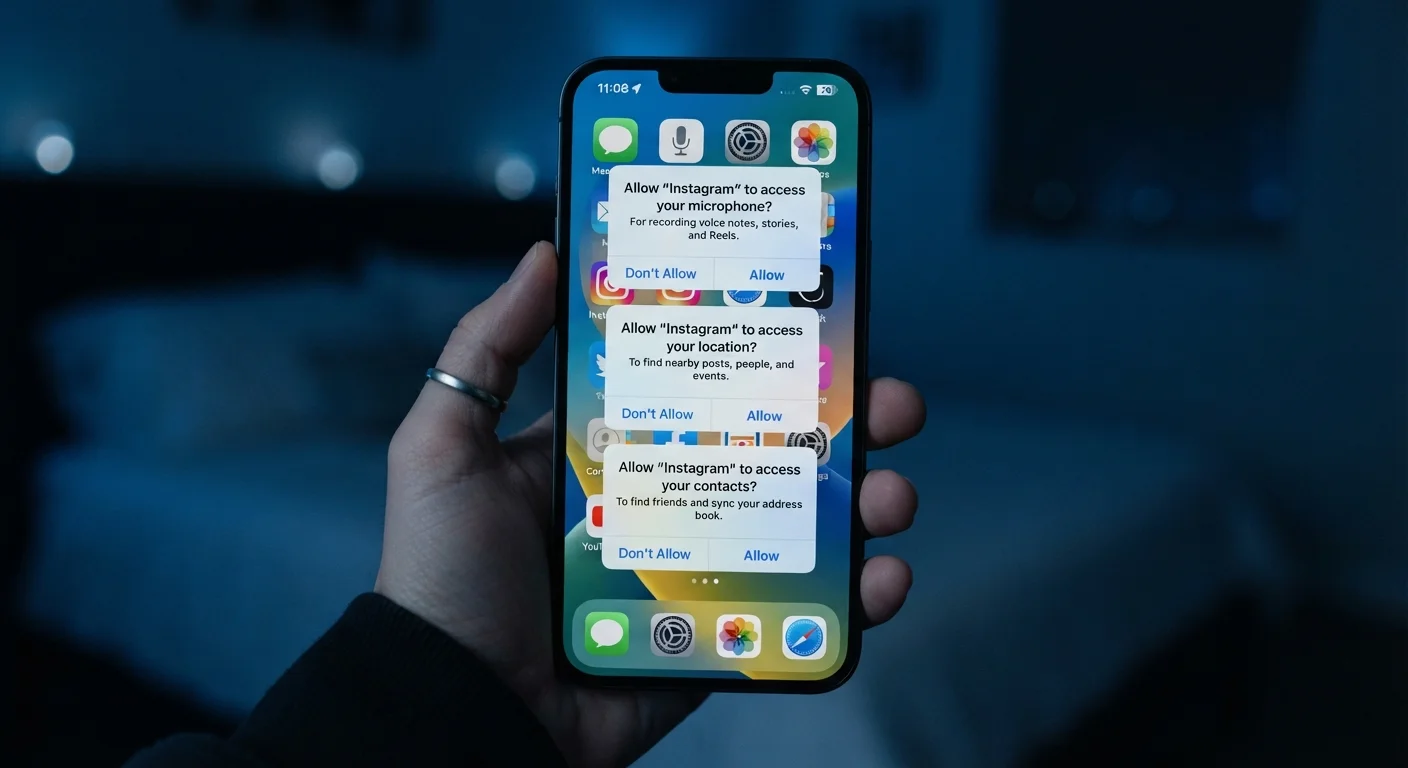
When an app asks for access to your camera, location, or microphone, the on-screen prompt is easy to dismiss with a quick tap. But each "Allow" is a real decision with real consequences for your privacy. Permissions are the gateway between an app and your device's hardware and personal data — and app stores don't vet every permission request for necessity or proportionality.
The result: many apps hold access they rarely use, or access that has no clear relationship to what the app actually does. A flashlight app that wants your contacts, a game that wants your precise GPS location — these requests should prompt skepticism, not reflex taps.
This checklist helps you understand what each common permission actually enables and gives you a systematic way to review what's already been granted on your device. For a broader look at locking down your digital life, see our annual digital security audit checklist.
Denying a Permission Doesn't Delete Past Data
Revoking a permission stops an app from collecting new data going forward, but it does not delete data the app may have already gathered. If you're concerned about data an app collected before you revoked access, check the app's privacy policy or account settings for a data-deletion option. For apps that handled health or financial information, this step is especially worth taking.
What to Have Ready Before You Start
Before working through the checklist items, gather the tools you'll need and set aside uninterrupted time. The audit itself takes 15–30 minutes depending on how many apps you have installed.
Your phone's Settings app
The primary place to view and revoke all app permissions — look for Privacy, Apps, or Permissions in the main settings menu.
Privacy Dashboard (Android 12+)
Shows a timeline of which apps accessed sensitive permissions — camera, microphone, and location — over the past 24 hours.
App Privacy Report (iOS 15+)
Displays how often each app has accessed permissions and which network domains apps have contacted.
A note-taking app or spreadsheet
Useful for logging which permissions you revoked per app, so you can reference your decisions later if an app stops working as expected.
Permissions Checklist: What to Audit and Why
Work through each group below. For every app listed under a permission, ask: Does this app's core function require this access? If the answer isn't clearly yes, revoke it and see whether the app still works for your purposes. You can always re-grant a permission later.
After you finish, take a few minutes to review privacy settings that often go unchecked — many defaults work hand-in-hand with app permissions.
Location Access
Microphone Access
Camera Access
Contacts Access
Precise vs. Approximate Location
Background App Activity
Health & Fitness Data
Final Review Steps
After the Audit: Habits That Stick
A one-time audit is useful, but permissions accumulate over time as you install new apps. Build a short review into your routine — even once per season takes under ten minutes once you know where to look.
A few principles worth keeping in mind going forward:
- Choose "While Using" over "Always" whenever location access is offered as an option. This restricts background tracking without breaking the feature.
- Question new permission prompts when an app update triggers them. Developers sometimes add data-collection features in updates; a new permission request after months of silence is worth scrutinizing.
- Consider the sensitivity of the data type. Microphone and camera access carry different risks than, say, access to your step count. Prioritize reviewing those first.
If you use wellness or mental health apps, note that they may request access to sensitive health data. Our article on the tradeoffs of self-help apps for mental wellness covers what to consider before sharing personal data with those tools. Similarly, if you're building out a smart home, permissions extend beyond your phone — see our guide on questions to ask before buying a smart home device.
This article is for informational purposes only. Privacy risks vary by device, operating system version, and individual app behavior. Consult your device manufacturer's support documentation for platform-specific guidance.