

Key Takeaways
Option A
Cloud Storage
The anywhere-access, subscription-based approach.
Best for: Users who work across multiple devices, collaborate frequently, or want automatic backups without thinking about hardware.
Option B
Local Storage
The own-it-outright, offline-first approach.
Best for: Users who prioritize full control over their data, work in areas with unreliable internet, or have large files that would be costly to store in the cloud.
If you need your files on multiple devices or share work with others
Cloud Storage
Cloud services sync automatically across devices and make real-time collaboration straightforward, without manually transferring files.
If you handle sensitive files and want no third-party access
Local Storage
Keeping files on your own drive means they never leave hardware you physically control, reducing exposure to remote breaches or policy changes.
If you have large video, audio, or design files that would be expensive to host remotely
Local Storage
High-capacity local drives have a one-time cost, while uploading and storing large volumes of data in the cloud can accumulate significant ongoing charges.
If you want automatic backups without managing the process yourself
Cloud Storage
Most cloud services back up files continuously in the background, protecting you from sudden device loss or accidental deletion with minimal effort.
If you want the most resilient long-term strategy
Cloud Storage
Combining cloud with at least one local backup follows the widely recommended 3-2-1 backup principle, giving you recovery options if either system fails.
What Each Storage Method Actually Means
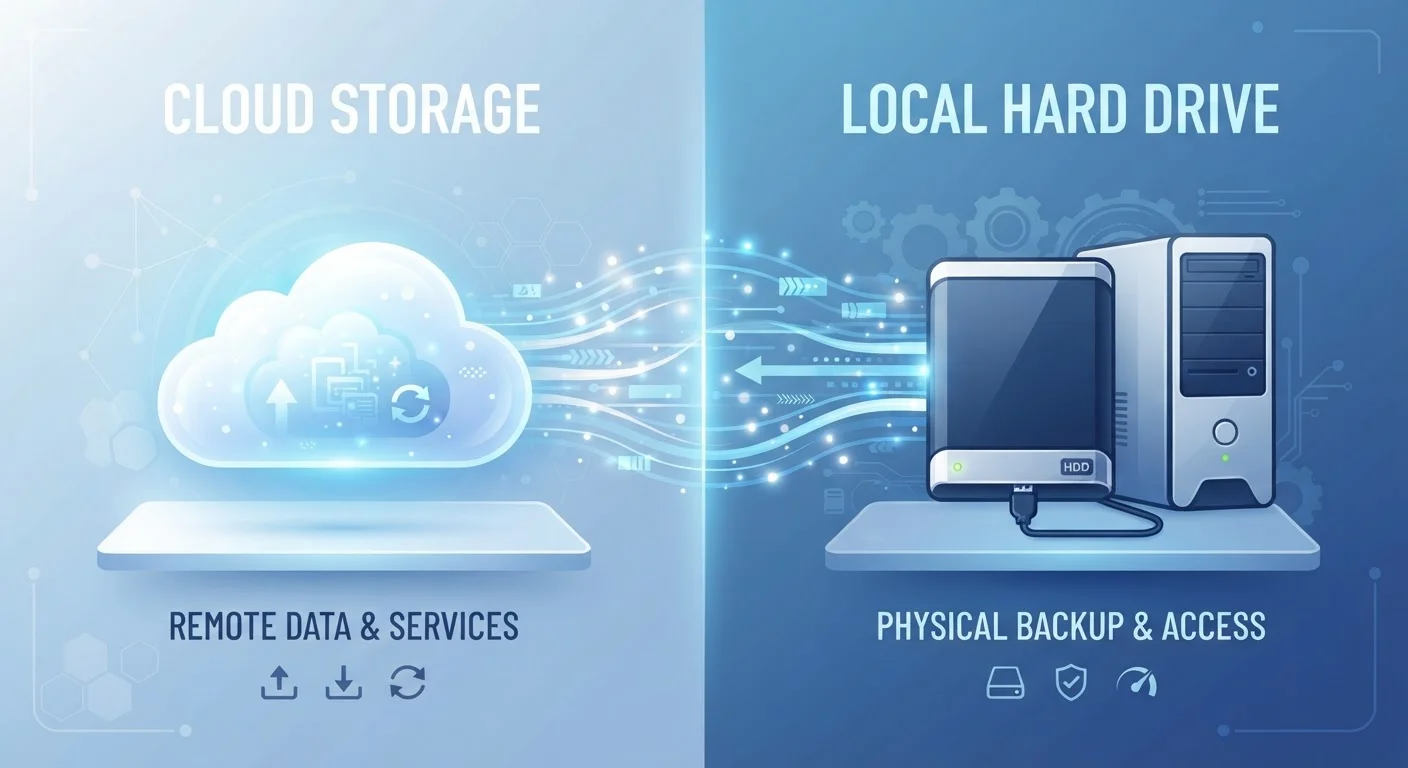
Cloud storage means your files are saved on remote servers operated by a third-party provider and accessed over the internet. Services in this category sync files across devices automatically and handle the underlying hardware maintenance for you. The trade-off is a recurring subscription cost and a dependency on internet connectivity.
Local storage means files live on hardware you own — a laptop's internal drive, an external hard drive, or a USB flash drive. You don't need an internet connection to access them, and no outside company holds copies of your data. The catch is that if the device fails, is lost, or is stolen, those files can disappear unless you've made your own backups.
Understanding what's actually happening to your data in either scenario matters more than most people realize. If you're curious how data moves and is cached in other digital contexts, the explainer on streaming, downloading, and caching covers related mechanics in plain terms.
| Criterion | Cloud Storage | Local Storage |
|---|---|---|
| Internet required | Yes, for access and sync | No |
| Upfront cost | Low or none | Moderate to high (hardware) |
| Ongoing cost | Monthly or annual subscription | None after purchase |
| Data control | Shared with provider | Fully yours |
| Multi-device access | Built-in and automatic | Manual transfer needed |
| Backup responsibility | Provider handles redundancy | You manage it yourself |
| Risk of data loss | Provider outage or account closure | Hardware failure or physical damage |
| Privacy exposure | Subject to provider's policies | Stays on your hardware |
Privacy, Security, and Who Can See Your Files
Privacy is one of the sharpest differences between these two approaches. When you store a file in the cloud, it travels over the internet and sits on servers that a company manages. Reputable providers use encryption — both in transit and at rest — but the company's own terms of service, and the laws of the jurisdiction where their servers sit, still apply to your data.
This doesn't mean cloud storage is unsafe, but it does mean your files exist in an environment you don't fully control. For sensitive documents — legal records, financial files, medical information — some users prefer local storage precisely because the data never leaves their own hardware. For practical tips on protecting yourself while your data moves across networks, see our guide on staying secure on public Wi-Fi.
Local storage has its own vulnerabilities: physical theft, fire or water damage, and drive failure. A local-only strategy without backups is arguably riskier for most people than a well-managed cloud setup. For deeper context on privacy and security practices, that hub covers the broader landscape.
Cost, Capacity, and Practical Access
Local storage has an upfront cost and no recurring fees. A high-capacity external hard drive is a one-time purchase that can hold multiple terabytes of data. Cloud storage typically charges monthly or annually, and costs rise as you need more space. Over several years, subscription costs can exceed what equivalent local hardware would have cost outright.
That said, cloud storage removes the management burden. You don't have to think about drive health, replace aging hardware, or physically carry anything. Files are simply available — on your phone, laptop, or a borrowed computer — anywhere you have internet. That accessibility has genuine everyday value for many users.
Accumulating files in either location without a clear system leads to digital clutter. If your storage, cloud or local, is feeling disorganized, a structured approach to clearing digital mess can help you audit what's worth keeping and where it should live.
The Hybrid Strategy Most Users End Up With
In practice, most people don't choose one or the other — they use both. A common and sensible approach is the 3-2-1 backup rule: keep three copies of important files, on two different types of storage media, with one copy stored off-site (which cloud storage naturally fulfills).
Active working files and frequently accessed documents tend to live in the cloud for easy access. Archives, large media projects, and sensitive records often stay on local drives. This split isn't arbitrary — it matches the strengths of each method to the files that benefit most from them.
One consideration worth noting: deleting a file from a cloud service doesn't always mean it's gone. Cloud accounts often retain data even after you remove it from a visible folder, and entirely closing an account is a separate action from uninstalling an app. The difference between deleting an app and closing your account explains what actually happens to your stored data in those situations.
This article provides general technology information for educational purposes. For guidance specific to your personal data security or business file management needs, consider consulting a qualified IT professional.